FlagView
FlagView displays information about the selected color above the selector. The library provides BubbleFlag as a default implementation.
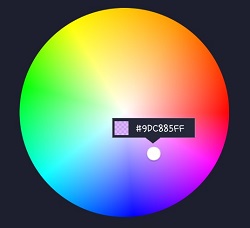
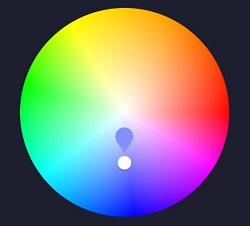
BubbleFlag (Default)
The library provides a ready-to-use BubbleFlag:
val bubbleFlag = BubbleFlag(this)
bubbleFlag.flagMode = FlagMode.FADE
colorPickerView.setFlagView(bubbleFlag)
FlagMode
FlagMode controls when the flag is visible:
// Show flag on every touch event
colorPickerView.setFlagMode(FlagMode.ALWAYS)

// Show flag only when finger is released
colorPickerView.setFlagMode(FlagMode.LAST)

// Never show flag (hide)
colorPickerView.setFlagMode(FlagMode.FADE)
| Mode | Description |
|---|---|
ALWAYS |
Flag is visible during tapping and dragging |
LAST |
Flag is shown only when the finger is released |
FADE |
Flag fades in and out based on touch events |
Custom FlagView
You can create a fully customized flag view by extending the FlagView class.
Step 1: Create Custom Layout
Create a custom XML layout (layout_flag.xml):
<?xml version="1.0" encoding="utf-8"?>
<LinearLayout xmlns:android="http://schemas.android.com/apk/res/android"
    xmlns:tools="http://schemas.android.com/tools"
    android:layout_width="100dp"
    android:layout_height="40dp"
    android:background="@drawable/flag"
    android:orientation="horizontal">

    <com.skydoves.colorpickerview.AlphaTileView
        android:id="@+id/flag_color_layout"
        android:layout_width="20dp"
        android:layout_height="20dp"
        android:layout_marginTop="6dp"
        android:layout_marginLeft="5dp"
        android:orientation="vertical" />

    <TextView
        android:id="@+id/flag_color_code"
        android:layout_width="wrap_content"
        android:layout_height="wrap_content"
        android:layout_marginTop="6dp"
        android:layout_marginLeft="10dp"
        android:layout_marginRight="5dp"
        android:textSize="14sp"
        android:textColor="@android:color/white"
        android:maxLines="1"
        android:ellipsize="end"
        android:textAppearance="?android:attr/textAppearanceSmall"
        tools:text="#ffffff" />

</LinearLayout>
Step 2: Create Custom FlagView Class
class CustomFlag(context: Context, layout: Int) : FlagView(context, layout) {

    private val textView: TextView = findViewById(R.id.flag_color_code)
    private val alphaTileView: AlphaTileView = findViewById(R.id.flag_color_layout)

    override fun onRefresh(colorEnvelope: ColorEnvelope) {
        textView.text = "#${colorEnvelope.hexCode}"
        alphaTileView.setPaintColor(colorEnvelope.color)
    }
}
public class CustomFlag extends FlagView {

    private TextView textView;
    private AlphaTileView alphaTileView;

    public CustomFlag(Context context, int layout) {
        super(context, layout);
        textView = findViewById(R.id.flag_color_code);
        alphaTileView = findViewById(R.id.flag_color_layout);
    }

    @Override
    public void onRefresh(ColorEnvelope colorEnvelope) {
        textView.setText("#" + colorEnvelope.getHexCode());
        alphaTileView.setPaintColor(colorEnvelope.getColor());
    }
}
Step 3: Set the Custom FlagView
colorPickerView.setFlagView(CustomFlag(this, R.layout.layout_flag))
onRefresh Method
The onRefresh method is called whenever the selected color changes. Use this to update your custom flag's UI:
override fun onRefresh(colorEnvelope: ColorEnvelope) {
    // Update your views with the new color information
    hexCodeTextView.text = "#${colorEnvelope.hexCode}"
    colorPreview.setBackgroundColor(colorEnvelope.color)

    // Access ARGB values
    val argb = colorEnvelope.argb
    alphaText.text = "A: ${argb[0]}"
    redText.text = "R: ${argb[1]}"
    greenText.text = "G: ${argb[2]}"
    blueText.text = "B: ${argb[3]}"
}
Flag Alpha
You can set the transparency of the flag view using XML attributes:
<com.skydoves.colorpickerview.ColorPickerView
    android:id="@+id/colorPickerView"
    android:layout_width="300dp"
    android:layout_height="300dp"
    app:alpha_flag="0.8" />
Complete Example
class MainActivity : AppCompatActivity() {

    override fun onCreate(savedInstanceState: Bundle?) {
        super.onCreate(savedInstanceState)
        setContentView(R.layout.activity_main)

        val colorPickerView = findViewById<ColorPickerView>(R.id.colorPickerView)

        // Set custom flag view
        val customFlag = CustomFlag(this, R.layout.layout_flag)
        colorPickerView.setFlagView(customFlag)

        // Set flag mode
        colorPickerView.setFlagMode(FlagMode.ALWAYS)

        colorPickerView.setColorListener(ColorEnvelopeListener { envelope, fromUser ->
            // Handle color selection
        })
    }
}

class CustomFlag(context: Context, layout: Int) : FlagView(context, layout) {

    private val textView: TextView = findViewById(R.id.flag_color_code)
    private val alphaTileView: AlphaTileView = findViewById(R.id.flag_color_layout)

    override fun onRefresh(colorEnvelope: ColorEnvelope) {
        textView.text = "#${colorEnvelope.hexCode}"
        alphaTileView.setPaintColor(colorEnvelope.color)
    }
}
Tips
AlphaTileView in FlagView
Using AlphaTileView instead of a regular View for color preview ensures that colors with transparency are displayed correctly against a checkered background.
Flag Positioning
The flag automatically positions itself above the selector. Make sure your flag layout has appropriate dimensions to display all content without clipping.